Calculate Payroll
Calculate payroll allows you to process and print paychecks or create Prearranged Payment and Deposit files for direct deposits.
Access Calculate Payroll
To access from the Button Bar, go to Payroll > Calculate Payroll

Calculate Payroll
-
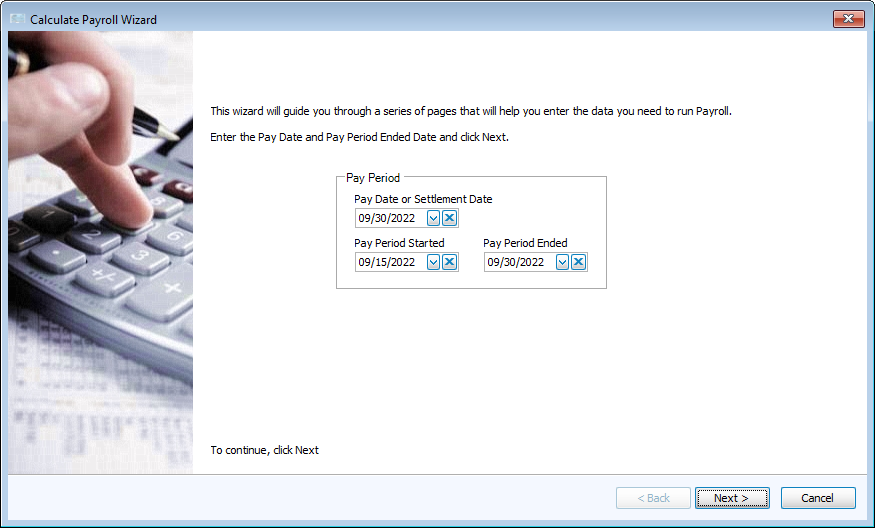
Enter Pay Date and Pay Period Start and End Dates.
-
These dates default to today's date. Pay dates may be after the end of a pay period.
-
The check date defaults to pay date but can be changed on the check printing screen.
-
For direct deposit, the Settlement Date is the date on which money will be taken from the church account and transferred to an employee. Check with your bank for information on processing times on ACH transfers.
The IRS uses the Pay Date to determine what month payroll is recorded and reported for your 941s.
Click Next.
-
-
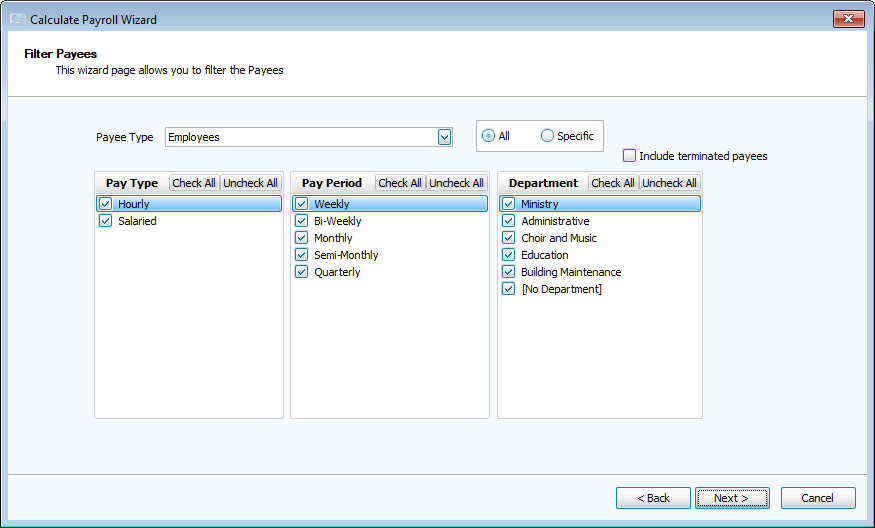
Filter Payees who will receive payments.
-
Use the Payee Type dropdown to select either Employees or Independent Contractors.
-
Additionally, you can filter by Pay Type, Pay Period or Department for all employees.
-
Select Specific to choose individual employees or contractors by name.
Click Next.
-
-
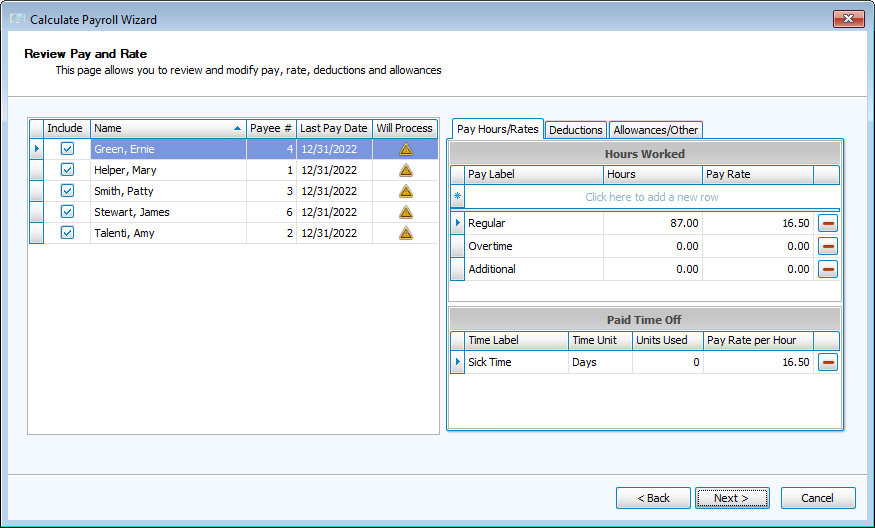
Review Pay and Rate details.
-
You can remove a payee by unchecking the box in the Include column.
-
The Will Process column indicates if payroll cannot be completed. The
 is an informational warning that this person has posted payroll on this date, but does not prevent running payroll. If there are no notifications for this payroll calculation, this column will be hidden.
 -
Pay Hours/Rates
-
If needed, you can enter or adjust hours with the appropriate pay labels. Adjustments to rate will only affect this pay.
-
Enter hours used for paid time off during this pay period, if any.
-
-
Deductions and Allowances
-
Changes made in Deductions and Allowances will only affect this single pay. To remove a deduction or allowance from this pay period click the
 button.
-
Click Next.
-
-
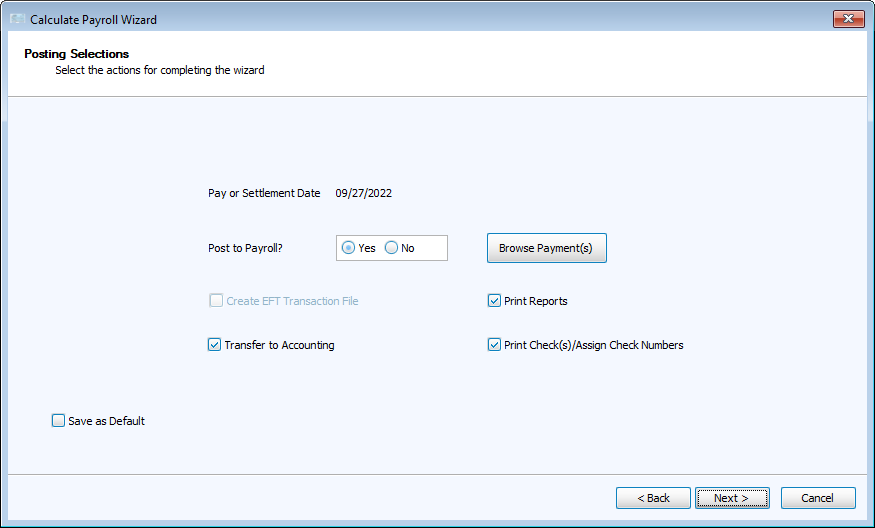
Browse Payments and Post.
-
Browse Payments
-
This screen allows you to review all of the amounts and totals of pay, deductions, allowances and PTO accumulated, available, and used.
-
Changes can be made to Tax Deductions and Medicare Surtax. Withholdings can be added if necessary.
-
-
When a payee receives direct deposit, keep Create EFT Transaction File checked. This will generate a text file to upload to your bank.
-
Check Print Reports for the option to select pay period reports about this posting.
-
LeaveTransfer to Accounting checked to record payroll expenses in their linked accounts.
-
Check Print Check(s)/Assign Check Numbers to Print Checks after posting.
-
-
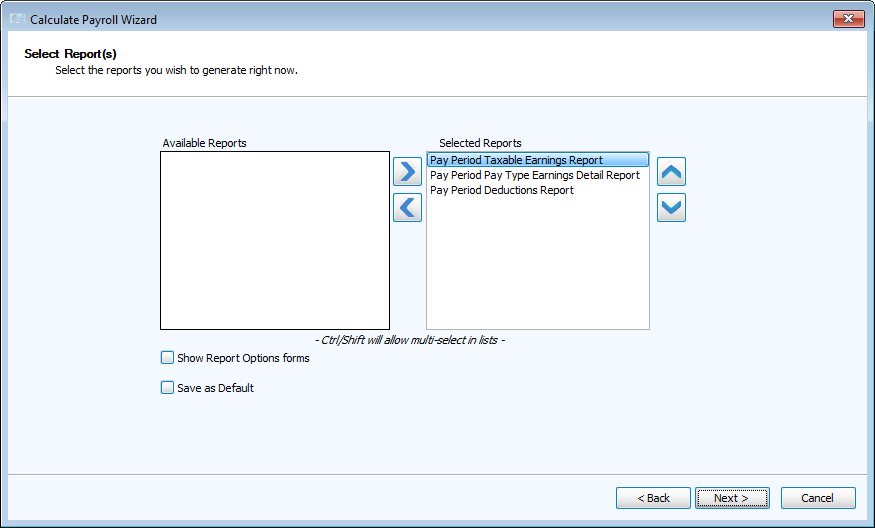
Select Reports.
-
Use the arrows to move desired reports to the right and omitted reports to the left.
-
Checking Show Report Options forms opens a window to modify the reports.
-
-
Click
 to close.